
How to use Speech
Hold the key. Talk. Let go.
Then the good part.
Every feature, shown working. The answers, translations and pictures on this page are real outputs of the app on sample sentences, not mock-ups. Two minutes here and Speech stops being a mystery.
The whole product in one sentence: you hold a key and talk, and clean text lands wherever your cursor is. Everything else on this page is built on that one move, so learn it first. The key is the right-hand Command key, just to the right of the space bar. It is lit up on the keyboard below, and it presses itself each time the demo runs.
The whole product in one sentence: you hold a key and talk, and clean text lands wherever your cursor is. Everything else on this page is built on that one move, so learn it first. On Windows the keys are Ctrl + Win, held together. Nothing else on Windows uses that pair, and it works on a laptop with no spare keys.
What you are seeing: the key goes down, the pill at the bottom of the screen listens, the spoken words float up, and when the key comes back up the cleaned text types itself and sends.
Install and sign in
Mac: the DMG from the home page. Windows: the .exe installer. Sign in with your email; a 6-digit code arrives, no password needed.
Two permissions
Setup asks for Microphone and Accessibility, with a live chip that turns green the moment each one applies. Nothing else is required.
One permission
Windows asks for the microphone the first time you dictate, and that is the whole of it. There are no permission panes to visit and nothing to switch on afterwards.
Your first line
Click in any text box, hold Right Command, say anything, let go. The pill listens while you hold; the text lands when you release.
Then the modes
Agent Mode on the fn key, twelve output languages, Vision, Image Mode, Google. Each is a chapter below, and setup walks you through the ones your account has.
Chapter 1 · Dictation
One key. Any app. Every language you speak.
Speech types into whatever your cursor is in: WhatsApp, Gmail, Docs, Slack, a code editor, a form on a website. Hindi, English, or both in one sentence. Click a line below and watch it land.
Hold. Talk. Let go.
The pill at the bottom of the screen listens only while you hold the key. Release it and clean text lands at the cursor: fillers gone, corrections resolved, numbers as digits, punctuation where you said it.
Click any line to play it. They also loop on their own.
Hands-free
Press the shortcut twice, quickly, and dictation locks on. Talk as long as you like: a long voice note, a page of thoughts, a whole meeting recap. Press once more to finish; Esc cancels.
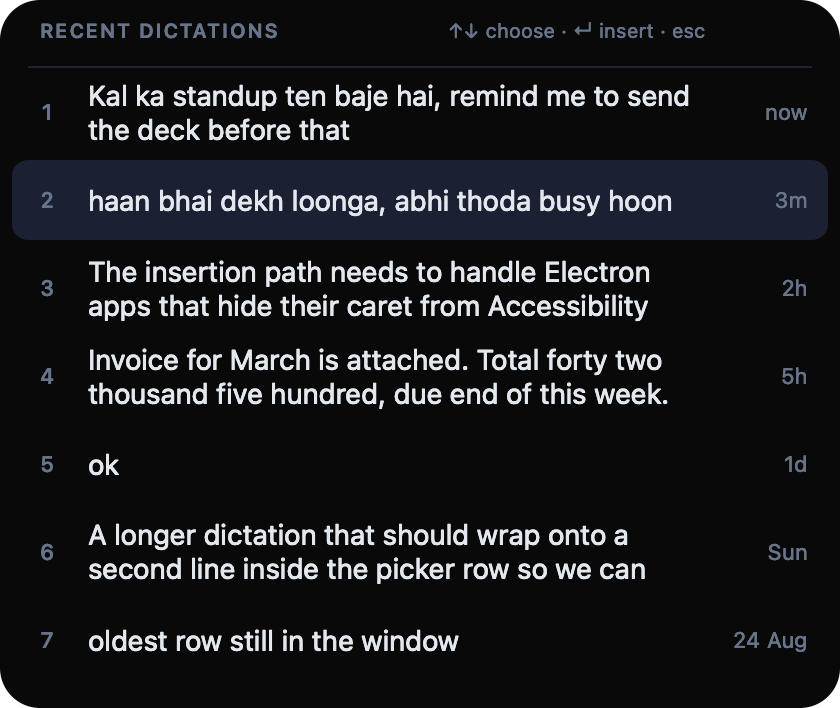
Recent dictations
Something you said an hour ago, needed again? Hold fn together with Right Command and a picker of your last lines appears. Arrow keys to choose, Return to insert.
The little things
Instant draft types the fast transcript first and quietly polishes it in place. Always-on tile keeps a small capsule at the bottom of the screen so Speech is always visibly there. Sound effects cue the mic opening and the words landing. All of them live in Settings.
Chapter 2 · Twelve languages
Speak in any language. Land in any language.
By default, the mix you speak is the mix that lands. Pick a language from the globe pill on Home and Speech translates as you dictate. Names, numbers, dates and every negation survive; only the words around them change. Every card on the ring is a real output for the same spoken sentence.
Where the switch is
The globe pill at the top of Home, and the Output language row in Settings. Setup introduces it just before your first line. Speak in whichever language you think in; the choice is only about what comes out.
- As you speak keeps Hinglish as Hinglish, written the way you would type it. This is the default.
- English for a client email dictated in Hinglish. Hindi, Marathi, Bengali, Tamil, Telugu, Kannada, Gujarati, Punjabi, Malayalam and Odia land in their own script.
- Checked on every line. The language you chose is verified after each dictation and translated again if the first pass did not do it.
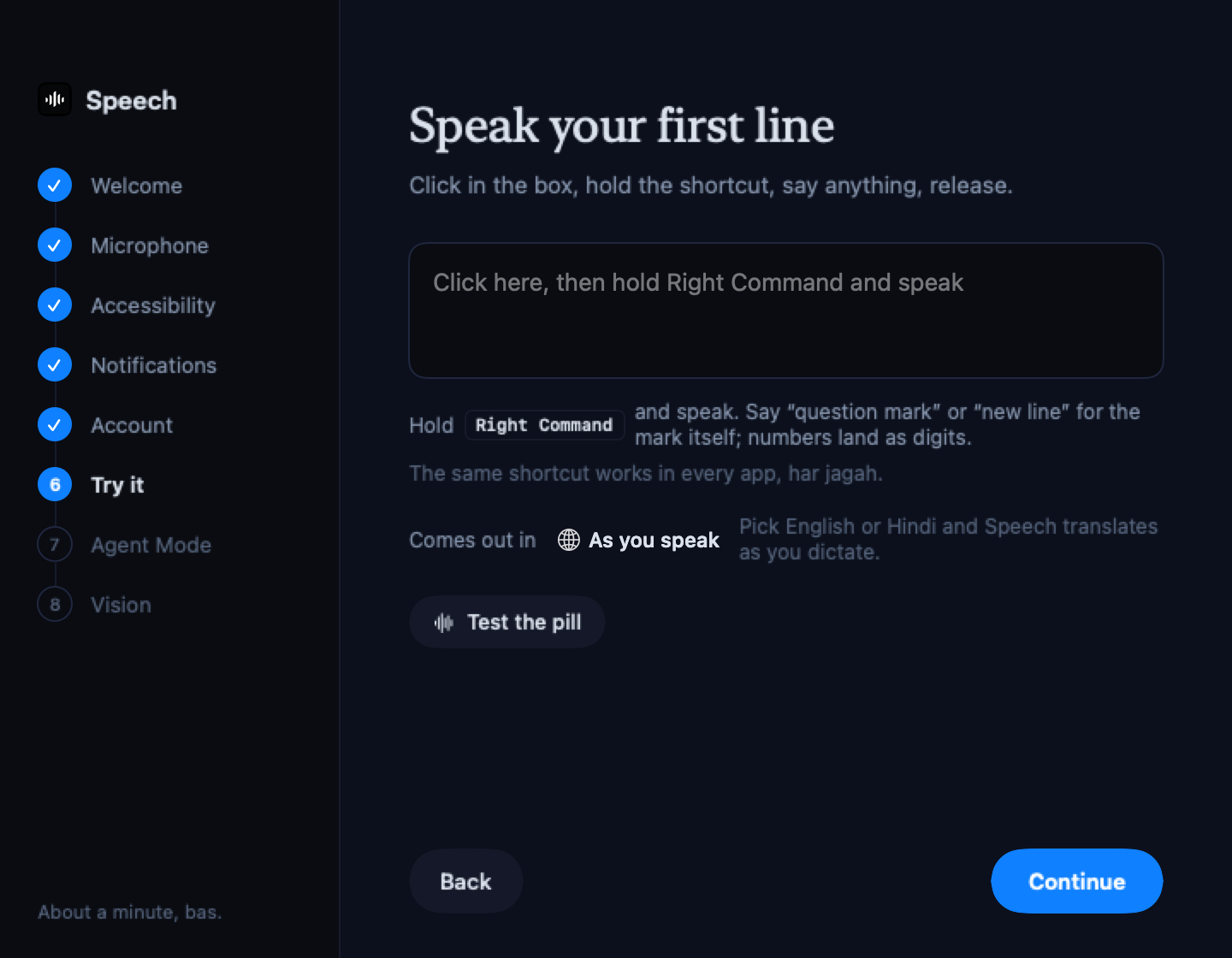
Setup, step 7. The pill is right there, just before your first line.
Chapter 3 · Agent Mode
Hold fn and say what you want done.
Dictation types what you said. Agent Mode does what you said: it rewrites the text you selected, drafts a reply, answers a question, looks something up, and undoes its last change. The fn key is the bottom-left key on a MacBook, the one with the globe on it. Ten real requests below; every answer is what the agent actually returned.
The fn key sits at the bottom-left corner, with a small globe printed on it. It presses itself each time a request runs.
Ctrl + Win + Alt is your dictation chord with Alt added, so there is one shape to remember rather than two. Windows has no fn key that reaches an application, which is why Agent Mode is a chord here.
Rewrite what you selected
Select a sentence, a paragraph, a whole message. Hold fn, say what to do with it, let go. The rewrite replaces the selection.
Write, ask, look up
Select nothing and the agent writes at your cursor, or answers out loud and in text. A question that needs today’s facts goes to the web first.
Click any request to run it on the sentence. Real answers, recorded from the app.
It remembers, for five minutes
The agent keeps your last few requests, so a follow-up like “make it even shorter” knows what it refers to. Say “bhool jao” (forget) to clear them, or press Forget in Settings.
“wapas karo” undoes
One Undo into whatever the agent just typed. Its rewrite lands as a single edit, so one undo takes the whole thing back out, and you can keep talking.
The answer streams in
Long answers appear word by word in a small overlay while the agent works, then land at the cursor in one go. Questions are spoken out loud as well, so a “weather?” asked with no text box open still gets answered.

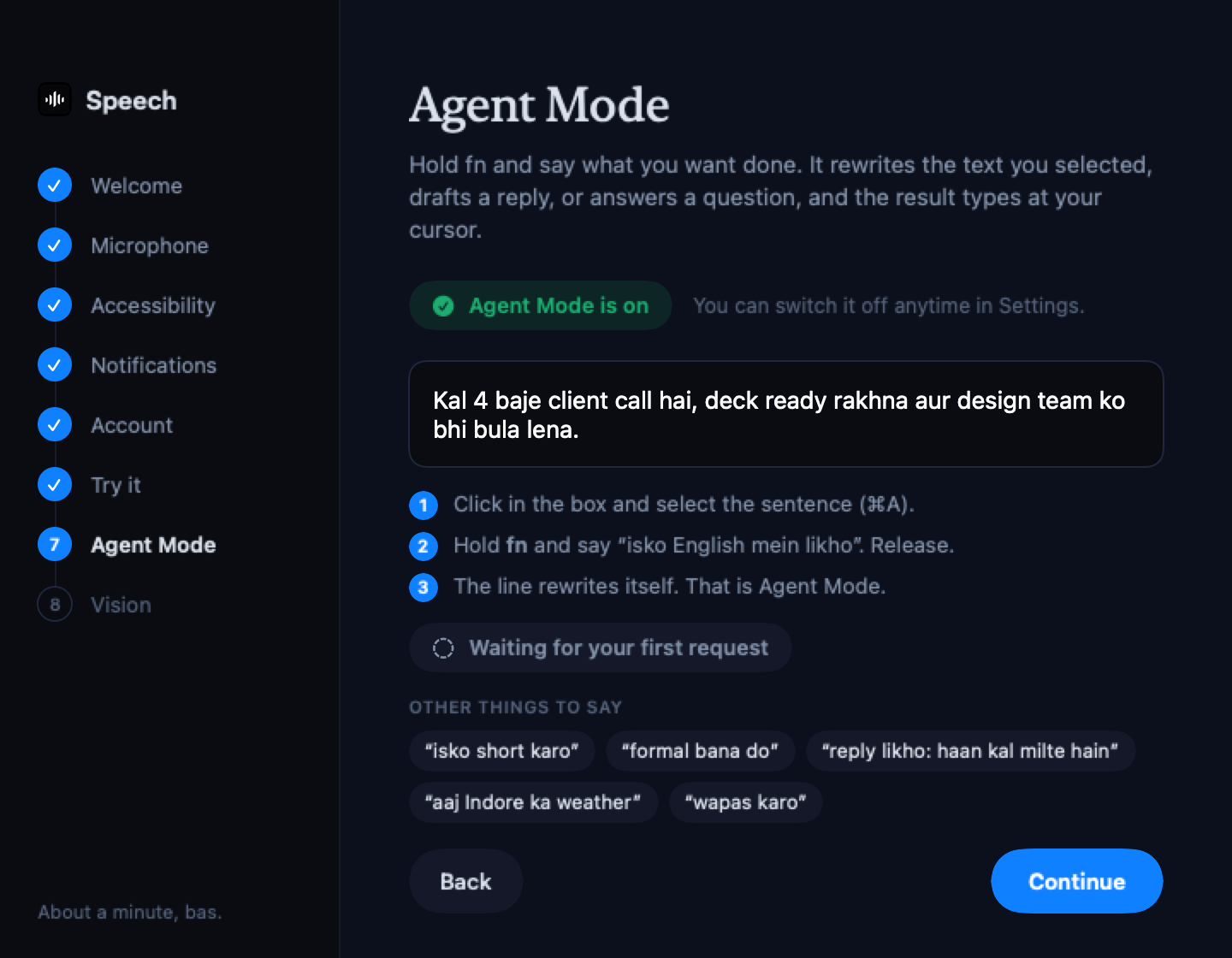
Setup, step 12. Turns it on and walks you through the first request, with a chip that goes green when the agent answers.
Chapter 4 · Google
Meetings and Meet links, by voice.
Connect Google Calendar to see and manage meetings on your own primary calendar. In Agent Mode, a calendar change becomes a confirmation card that waits for your tap. Google Connect does not provide Gmail, Docs, Sheets or Drive access.
Then just ask
Hold fn anywhere and say what you need. A meeting request becomes a card; your tap creates it and the Meet link is copied for you. A calendar question is answered out loud.
Click a request. The card is what you see in the app before anything is written.
Create this meeting?
Google CalendarCalendar
- Invite the right person. Use an email address. Name lookup is available when your Speech organisation has a directory. Check the invitee before confirming.
- Meet link on the clipboard. When the answer carries a link, it is copied for you, ready to paste.
- Confirm calendar changes. In Agent Mode, creating, updating or deleting a meeting requires your confirmation. Reading your calendar needs no confirmation card.
- Meeting notes page. The same calendar lives in the app’s sidebar, with a Join call button on every meeting.
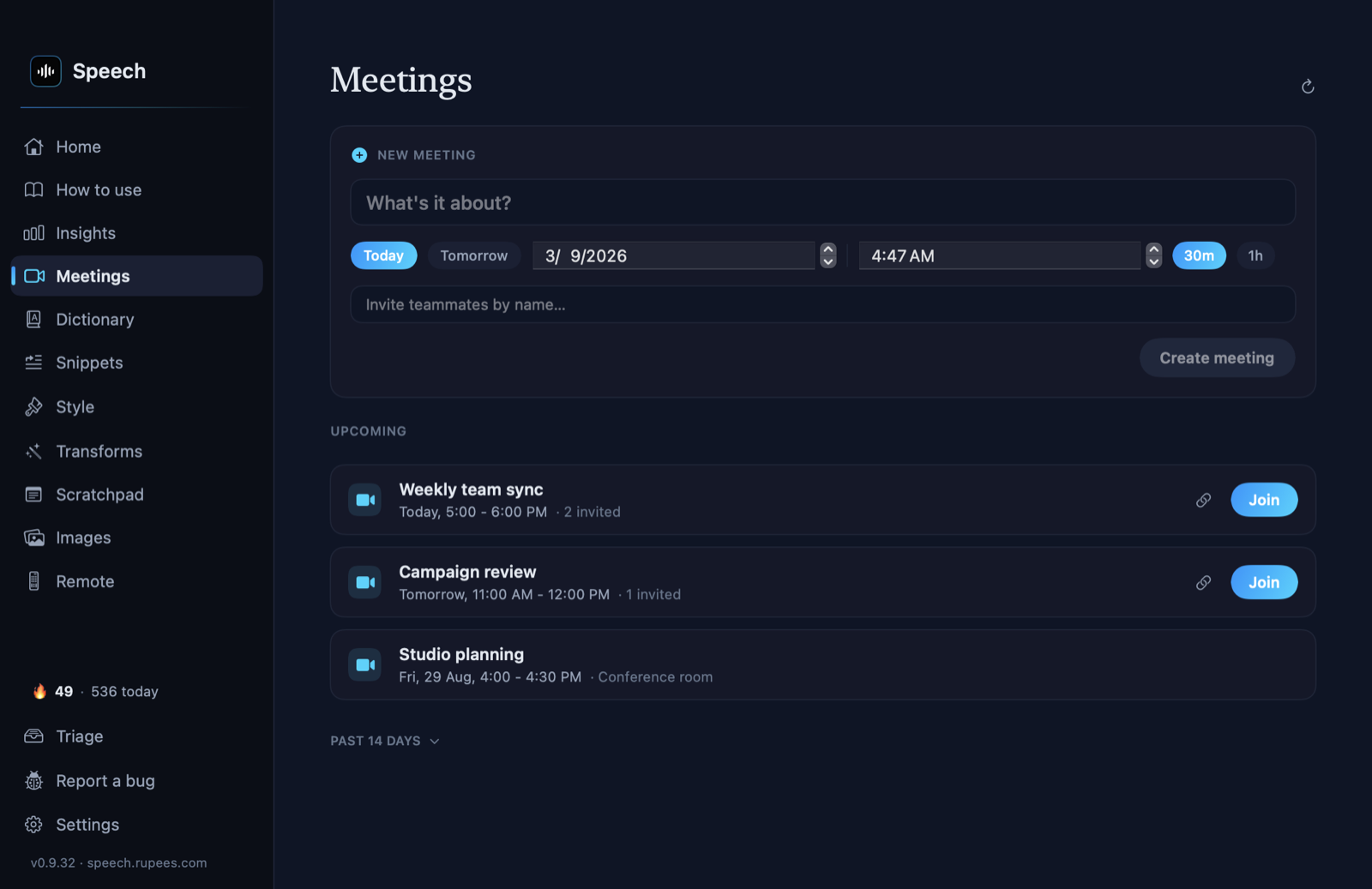
Meeting notes, in the sidebar. Create by form or by voice; Join call is one click.
Chapter 5 · Vision
Let the agent see what you are looking at.
With Vision on, a question about the screen sends a picture of the window in front of you along with your words. Only that window, only when you ask about the screen. Below, the screen is a real Settings page and the three answers are what the agent really said about it.
Ask about the screen
A webpage, a PDF, a chat, a dashboard. Hold fn and ask. The answer is spoken, and typed if there is somewhere to type.
- Only when you ask about the screen. A plain rewrite never sends a picture.
- Never a password manager or a banking app. Those windows are never captured.
- Turn it on in Settings (or in setup, step 13). It prompts for Screen Recording; macOS may ask you to quit and reopen Speech once. Mac only, macOS 14 or later.
- Vision is a Mac feature today. The Windows client does not have it yet, so there is nothing to turn on here.
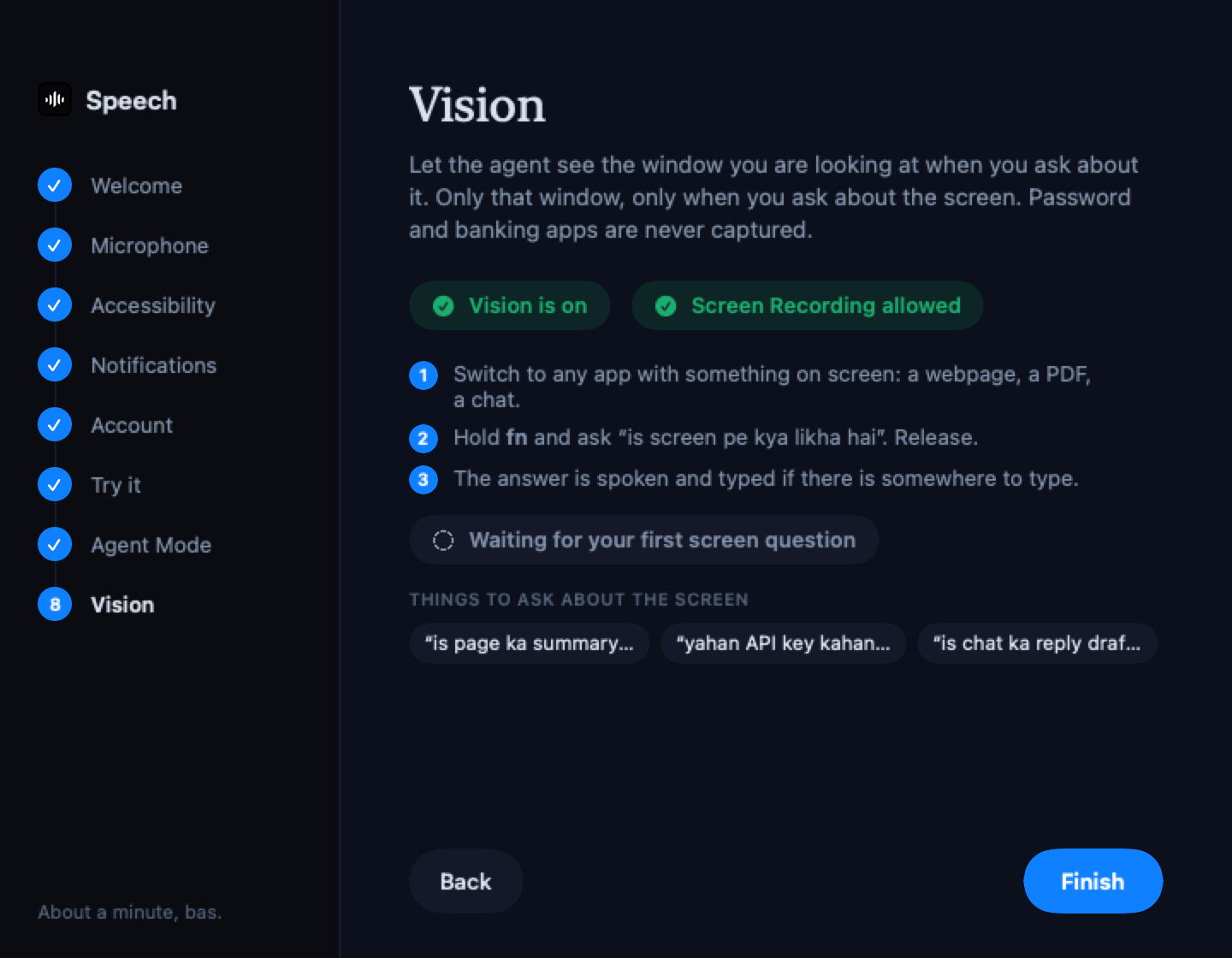
Setup, step 13. One button: the switch, the Screen Recording prompt, the pane. The chip turns green when it applies.
Chapter 6 · Image Mode
Say what you want. The picture lands where you are.
Cursor in WhatsApp, hold fn, describe the picture. A few seconds later a panel shows it; Return pastes it into the chat, Esc discards. Both pictures below were made by Speech from exactly these words.

Describe it, hold fn
Posters, product shots, social creatives, a quick illustration for a deck. Hindi text inside the picture comes out spelled right, which is why this model was chosen.
- Return pastes, Esc discards. Nothing is ever pasted or sent without that Return. Ask for two options and the panel shows both; 1–4 or the arrow keys pick one.
- “usko thoda bright karo” edits the last picture instead of making a new one. “is photo mein se text hata do” works the same way.
- The Images page in the sidebar keeps everything you made for a day, with a download button.
- Per account, with a daily cap (40 pictures a day by default). Each picture costs real money, so this grant is separate from Agent Mode.

“ek monsoon sale ka poster banao, Sharma Garments ke liye, 40% off”

“mango achaar ke jar ki product photo banao, wooden table, morning light”
Chapter 7 · Words and snippets
Teach it your names, save your blocks.
Speech spells a name wrong once. Fix it in one move and it never happens again. Then save the things you type ten times a day.
Fix a word once, forever
- Select the wrong word, in any app.
- Tap the Command key twice, quickly. That is the ⌘ key on either side of the space bar; press it two times in a row, like a double-click, without holding it. A small box opens over the word.
- Tap Ctrl twice, quickly. Either Ctrl key: press it two times in a row, like a double-click, without holding it. A small box opens over the word.
- Type the right spelling and press Return. From then on Speech types it your way, in every app.
Speech also learns on its own: correct a word right after dictating it and a small toast asks whether to remember the fix.

Snippets
Say a trigger phrase and a whole block lands instead: your address, a sign-off, a rate card, a link. Home notices when you nearly said one and offers to save it.
Dictionary
Names, brands and terms spelled your way, every time. Fix-a-word feeds it automatically, and you can add words by hand on the Dictionary page.
Style and Transforms
Style: how much cleanup you want per app (verbatim, light, medium, tight) plus a note in your own words that the formatter follows. Transforms: a saved rewrite on a key chord, Agent Mode without speaking.
Chapter 8 · Hands-free
Say “Jarvis” and it starts listening.
For accounts with the wake word: no key at all. Say the word, talk, pause, and the text lands. Say “Jarvis stop” to end early.
The wake word
Switch it on in Settings. While it listens, the microphone stays open on your Mac and the orange dot stays lit. The listening happens on the Mac itself; nothing is sent anywhere until the word is heard.
Windows has no permission panes to check, so it is one of three things: another app has taken Ctrl + Win, Speech is not running (its icon is in the system tray), or the window you are typing into is running as administrator while Speech is not. Report a bug from the sidebar and the diagnostics come with it.
- “Jarvis” starts a dictation. A pause of a couple of seconds ends it.
- “Jarvis stop” ends it right away.
- Prefer a key? Press your dictation shortcut twice to lock dictation on, as shown in chapter 1.
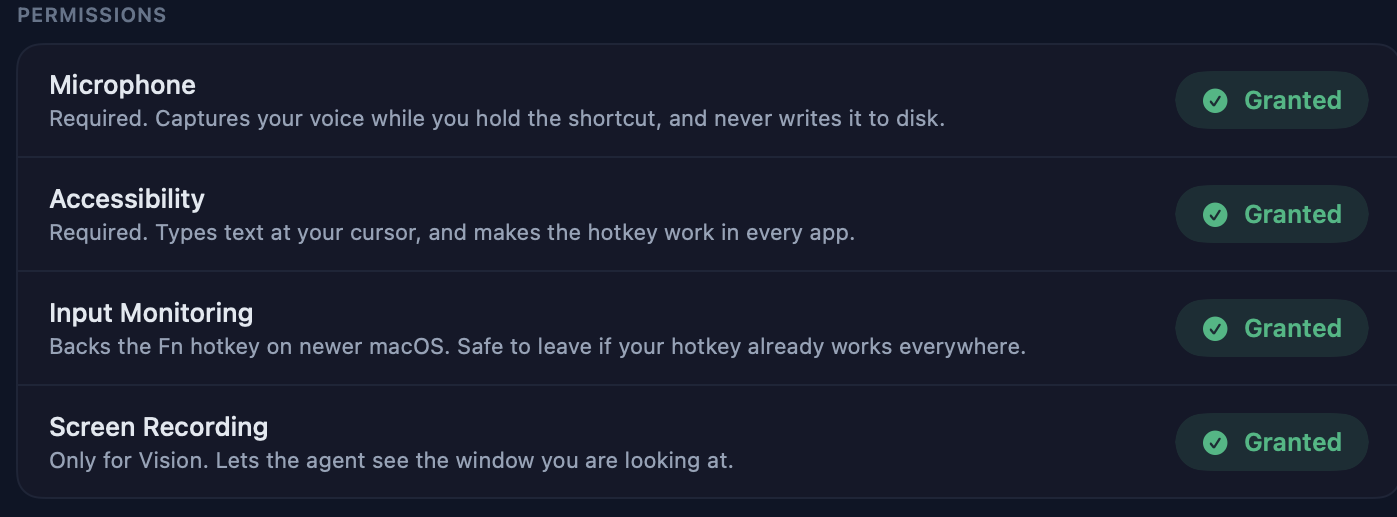
Chapter 9 · Permissions
Two are required. The rest back one feature each.
Setup asks for them in order, and Settings shows every one as a live chip with a Grant button that opens the exact pane.
Settings, Permissions. Every permission, live.
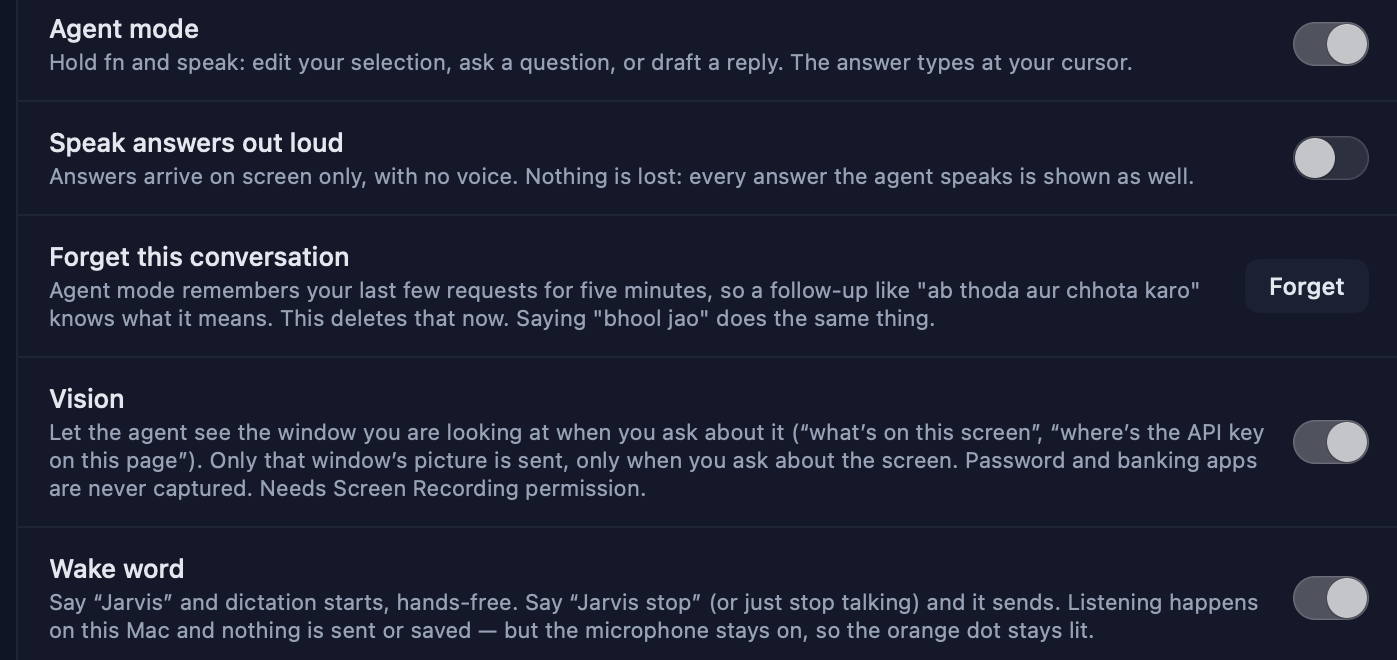
Settings, Agent. Agent Mode, voice, memory, Vision and the wake word, each with its own switch.
Chapter 10 · When something is off
Straight questions, straight answers.
Nothing types when I hold the key
Microphone and Accessibility must both be green in Settings. If they are and it still does nothing, switch Accessibility off and on once, or quit and reopen Speech: macOS sometimes hands the grant to the app only on its next launch. The menu bar has “Run Setup…”, which walks every step again.
Holding fn does nothing
Three things, in order: Agent Mode is switched on in Settings; fn is not also your dictation key; your account has the grant (no switch in Settings means it does not yet). If all three are fine and the pill never appears, report it from the sidebar.
I chose a language and got my own words back
Fixed on 2 September 2026: the language you choose is now checked on every dictation and translated again if the first pass did not do it. If you still see it, report it with the exact line; the report carries the diagnostics we need.
The Google row is not in my Settings
Use an up-to-date Speech app and check Settings → Connections. Google Connect supports personal Google and Workspace accounts; it is separate from basic Google sign-in. A Workspace administrator may restrict third-party access. If the row is missing or connection fails, contact Support with the message shown.
“Daily limit reached”
Every account has a ceiling on audio per day, and Image Mode has its own. Both clear on a rolling 24 hours; your account page shows where you are. If you regularly hit it, email us: raising it for one person is a two-minute change.
It typed something I did not say
Report it. Speech is built on the rule that it never invents words, so this is a defect, not a quirk. Report a bug is in the app’s sidebar, or Control Option Command B from anywhere; it attaches what we need to reproduce it.
Cannot sign in, or cannot open the app
Email support@rupees.com with which app you were dictating into and roughly when. The support page has the rest.